Sws101_snort
Topic: Snort
Introduction
This room expects us to be familiar with basic Linux commands for navigating the system and understanding network fundamentals like ports, protocols, and traffic analysis.
Interactive Material and VM
Interactive material and exercise setup
We start the machine and get a split screen with the interactive machine.
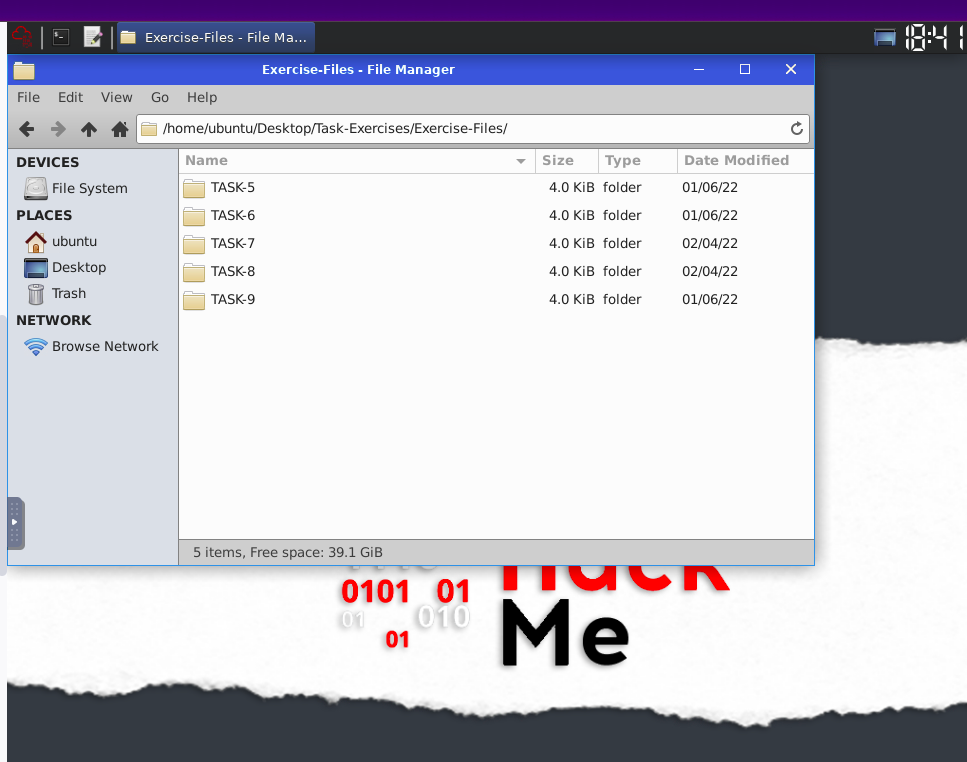
In the machine we see a folder named “Task-Exercises” on the Desktop with two sub-folders available;
Config-Sample - Sample configuration and rule files.
Exercise-Files - There are separate folders for each task. Each folder contains pcap, log and rule files ready to play with.
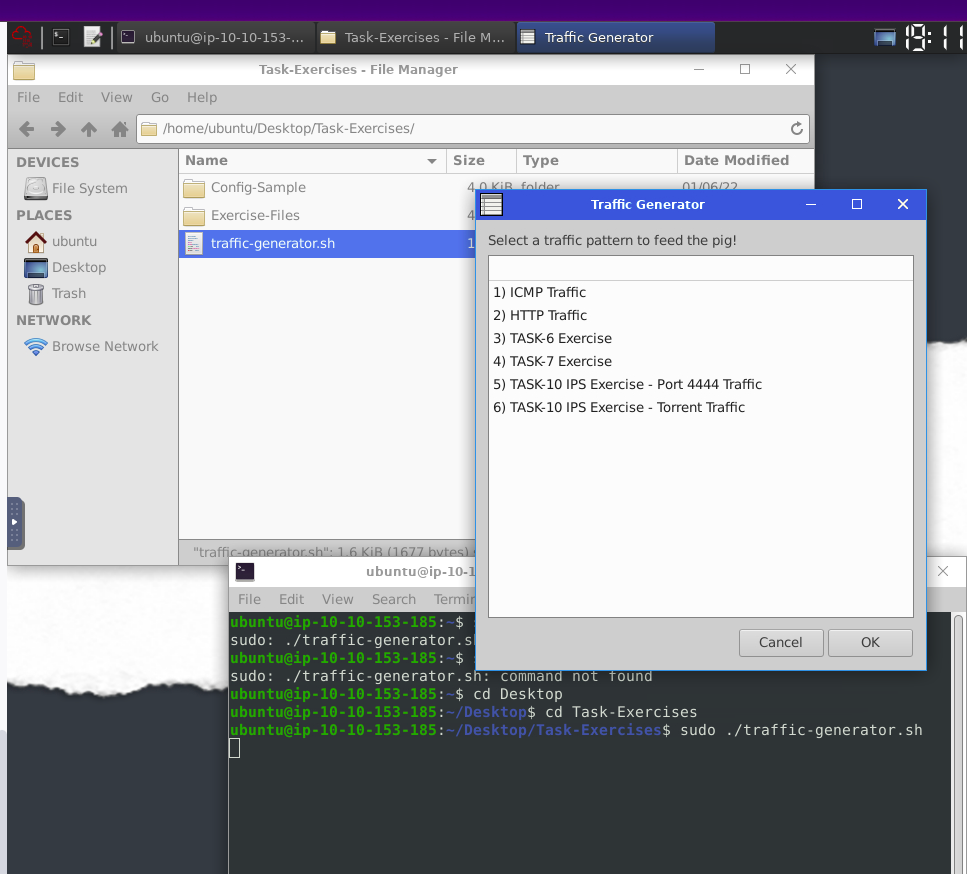
Traffic Generator
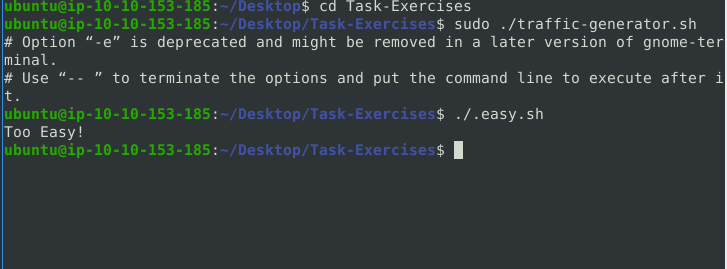
sudo ./traffic-generator.sh
we can run this command to generate traffic to the interface. It will ask you to choose the exercise type and then automatically open another terminal to show you the output of the selected action.
Introduction to IDS/IPS
Intrusion Detection Systems (IDS)
are security tools that continuously monitor network traffic (Network IDS - NIDS) or individual devices (Host-based IDS - HIDS) for suspicious activity. They compare network traffic or system behavior to known attack patterns (signatures) and generate alerts when potential threats are detected.
The two main types of IDS are:
Network Intrusion Detection System (NIDS): This type acts as a network traffic guard, monitoring the flow of data across the entire network (subnet). It analyzes traffic for suspicious patterns and raises alerts if it identifies a known attack signature.
Host-based Intrusion Detection System (HIDS): This type focuses on individual devices (endpoints) like servers or workstations. It monitors activity on the device itself, looking for suspicious system behavior or unauthorized access attempts. When a signature match is found, it triggers an alert for investigation.
Intrusion Prevention System (IPS)
Intrusion Prevention Systems (IPS) actively take steps to prevent suspicious activity it. Similar to IDS, IPS come in two main categories:
Network Intrusion Prevention System (NIPS): This acts as a network security shield by monitoring network traffic for malicious activity. If a known attack signature is detected, NIPS can take actions like blocking the connection, dropping the packet, or resetting the connection to prevent the attack from succeeding.
Behavior-based Intrusion Prevention System (Network Behavior Analysis - NBA): This focuses on atypical network behavior. It analyzes traffic patterns for deviations from normal activity and can take preventive actions if suspicious behavior is detected.
Detection/Prevention Techniques
There are three main detection and prevention techniques used in IDS and IPS solutions;
signature-based technique - this technique indentifies the known pattern of a malicious behavior.
Behavior-based technique - This technique identifies new threats with new patterns that pass through signatures. The model compares the known/normal with unknown/abnormal behaviours.
Policy-Based technique - this technique compares detected activities with system configuration and security policies. This model helps detect policy violations.
First Interaction with Snort
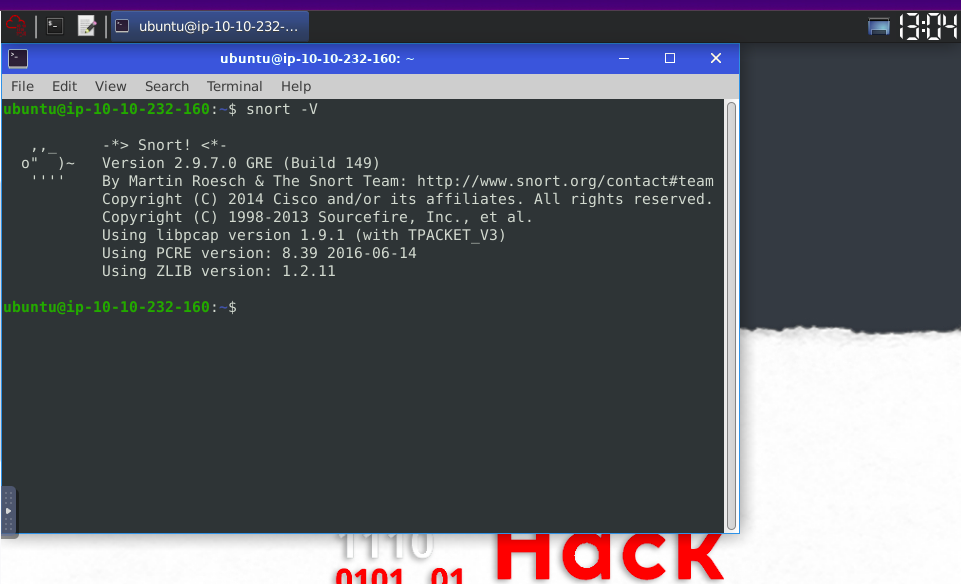
verifying that snort is installed.
ensuring our configuration file is valid.
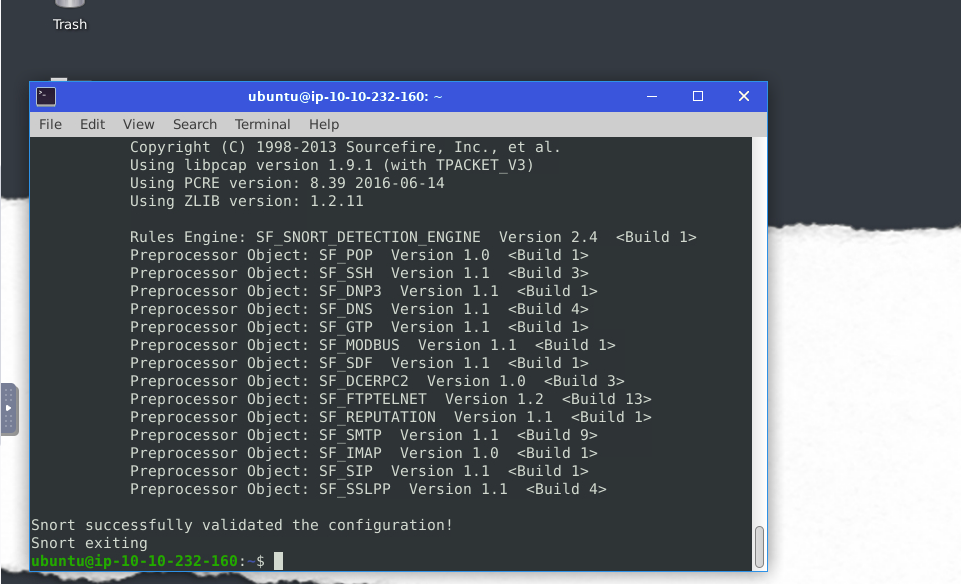
The configuration file is an all-in-one management file of the snort. Rules, plugins, detection mechanisms, default actions and output settings are identified here. It is possible to have multiple configuration files for different purposes and cases but can only use one at runtime.
some important parameters:
- V / — version -This parameter provides information about your instance version.
- -c -Identifying the configuration file
- -T -Snort’s self-test parameter, you can test your setup with this parameter.
- -q -Quiet mode prevents snort from displaying the default banner and initial information about your setup.
Operation Mode 1: Sniffer Mode
Like tcpdump, Snort has various flags capable of viewing various data about the packet it is ingesting.
Sniffer mode parameters:
- -v -Verbose. Display the TCP/IP output in the console.
- -d -Display the packet data (payload).
- -e -Display the link-layer (TCP/IP/UDP/ICMP) headers.
- -X -Display the full packet details in HEX.
- -i -This parameter helps to define a specific network interface to listen/sniff. Once you have multiple interfaces, you can choose a specific interface to sniff.
Sniffing with parameter “-i”
udo snort -v-i eth0
Sniffing with -v
sudo snort -v
Sniffing with parameter “-d”
sudo snort -d
Sniffing with parameter “-de”
sudo snort -de
Sniffing with parameter “-X”
sudo snort -X
Operation Mode 2: Packet Logger Mode
Packet logger parameters:
- -l -Logger mode, target log and alert output directory. Default output folder is /var/log/snort. The default action is to dump as tcpdump format in /var/log/snort
- -K ASCII- Log packets in ASCII format.
- -r -Reading option, read the dumped logs in Snort.
- -n -Specify the number of packets that will process/read. Snort will stop after reading the specified number of packets.
Investigate the traffic with the default configuration file with ASCII mode.
sudo snort -dev -K ASCII -l .
Operation Mode 1: Sniffer Mode
NIDS mode parameters:
- -c :Defining the configuration file.
- -T :Testing the configuration file.
- -N :Disable logging.
- -D :Background mode.
-A: Alert modes;
- full: Full alert mode, providing all possible information about the alert. This one also is the default mode; once you use -A and don’t specify any mode, snort uses this mode.
- fast: Fast mode shows the alert message, timestamp, source and destination IP, along with port numbers. console: Provides fast style alerts on the console screen.
- cmg: CMG style, basic header details with payload in hex and text format.
- none: Disabling alerting
We used a pre-defined ICMP rule as an example. The defined rule will only generate alerts in any direction of ICMP packet activity.
alert icmp any any <> any any (msg: “ICMP Packet Found”; sid: 100001; rev:1;)
IPS mode and dropping packets
Snort IPS mode activated with -Q — daq afpacket parameters. You can also activate this mode by editing snort.conf file.
Activate the Data Acquisition (DAQ) modules and use the afpacket module to use snort as an IPS: -i eth0:eth1
sudo snort -c /etc/snort/snort.conf -q -Q –daq afpacket -i eth0:eth1 -A console
Operation Mode 4: PCAP Investigation
Capabilities of Snort are not limited to sniffing, logging and detecting/preventing the threats. PCAP read/investigate mode helps us work with pcap files. Once we have a pcap file and process it with Snort, we will receive default traffic statistics with alerts depending on our rule set.
PCAP mode parameters:
- -r / — pcap-single= :Read a single pcap
- — pcap-list=”” :Read pcaps provided in command (space separated).
- — pcap-show :Show pcap name on console during processing.
Investigating single pcap file with a configuration file.
sudo snort -c /etc/snort/snort.conf -q -r icmp-test.pcap -A console -n 10
Investigating multiple PCAPs with parameter “ — pcap-list”
sudo snort -c /etc/snort/snort.conf -q –pcap-list=”icmp-test.pcap http2.pcap” -A console -n 10
Investigating multiple PCAPs with parameter “ — pcap-show”
Snort will identify the traffic, distinguish each pcap file and prompts the alerts according to our ruleset.
sudo snort -c /etc/snort/snort.conf -q –pcap-list=”icmp-test.pcap http2.pcap” -A console –pcap-show
Snort Rule Structure
Each rule should have a type of action, protocol, source and destination IP, source and destination port and an option. Remember, Snort is in passive mode by default. So most of the time, you will use Snort as an IDS. You will need to start “inline mode” to turn on IPS mode. But before you start playing with inline mode, you should be familiar with Snort features and rules.
The Snort rule structure is easy to understand but difficult to produce. You should be familiar with rule options and related details to create efficient rules. It is recommended to practice Snort rules and option details for different use cases.
We will cover the basic rule structure in this room and help you take a step into snort rules. You can always advance your rule creation skills with different rule options by practising different use cases and studying rule option details in depth. We will focus on two actions; “alert” for IDS mode and “reject” for IPS mode.
Rules cannot be processed without a header. Rule options are “optional” parts. However, it is almost impossible to detect sophisticated attacks without using the rule options.
Snort2 Operation Logic: Points to Remember
Main Components of Snort
- Packet Decoder - Packet collector component of Snort. It collects and prepares the packets for pre-processing.
- Pre-processors - A component that arranges and modifies the packets for the detection engine.
- Detection Engine - The primary component that process, dissect and analyse the packets by applying the rules.
- Logging and Alerting - Log and alert generation component.
- Outputs and Plugins - Output integration modules (i.e. alerts to syslog/mysql) and additional plugin (rule management detection plugins) support is done with this component.
There are six DAQ modules available in Snort;
- Pcap: Default mode, known as Sniffer mode.
- Afpacket: Inline mode, known as IPS mode.
- Ipq: Inline mode on Linux by using Netfilter. It replaces the snort_inline patch.
- Nfq: Inline mode on Linux.
- Ipfw: Inline on OpenBSD and FreeBSD by using divert sockets, with the pf and ipfw firewalls.
- Dump: Testing mode of inline and normalisation. The most popular modes are the default (pcap) and inline/IPS (Afpacket).
Conclusion
In this room, we covered Snort, what it is, how it operates, and how to create and use the rules to investigate threats.
- Understanding and practising the fundamentals is crucial before creating advanced rules and using additional options.
- Do not create complex rules at once; try to add options step by step to notice possible syntax errors or any other problem easily.
- Do not reinvent the wheel; use it or modify/enhance it if there is a smooth rule.
- Take a backup of the configuration files before making any change.
- Never delete a rule that works properly. Comment it if you don’t need it.
- Test newly created rules before migrating them to production.